Produktai
Produktai
Produktai Namų projektavimo programinė įranga Planner 5D pro AI interjero dizaino įrankiai Mood Boards Zwiedzanie w 360º AI Grindų Plano Konverteris Samdyti dizainerį
Platformos iOS Android Windows macOS VisionOS
Ištekliai
Ištekliai
Mokytis Interjero dizaino mokykla Interior Design Blog Dizainerių mūšis
Tyrinėti Vizualizacijų galerija Geriausi Interjero Dizaineriai
Verslui
Verslui
Sprendimai įmonėms Sprendimai mokykloms Partnerių programa
Kainos
Dizainerių mūšis
Kalbos
Kalbos
English Português Español Français Italiano Polski Lietuviškai Deutsch 中国 Sverige Русский
Atsisiųskite Planner 5D programėlę Pradėkite naudotis programa, kad pagerintumėte savo patirtį ir atrakintumėte visas mobiliojo telefono funkcijas
English Português Español Français Italiano Polski Lietuviškai Deutsch 中国 Sverige Русский
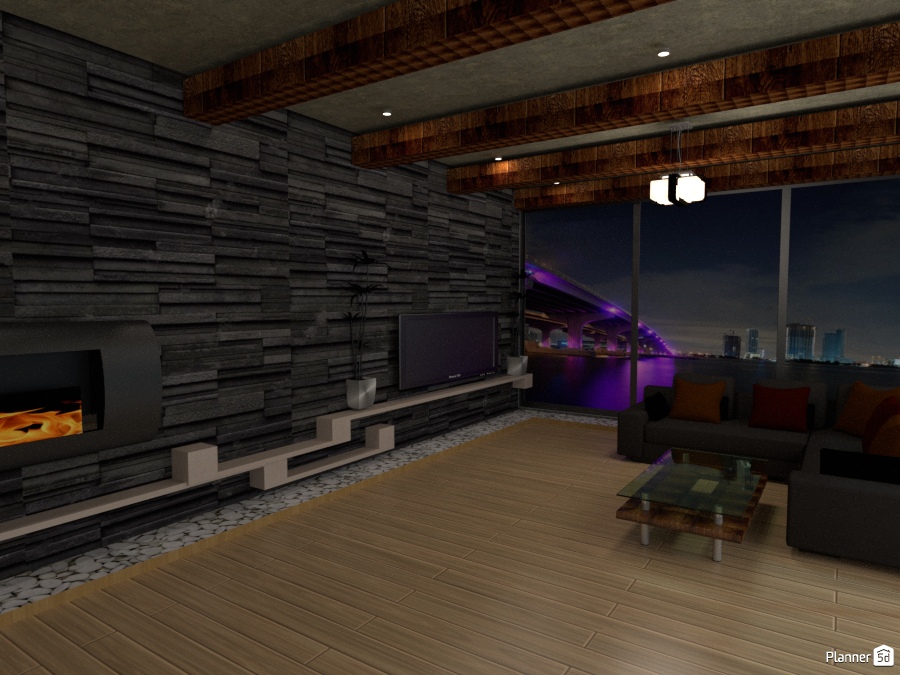
stone wall #1775920 by Jason
Butas Namas Terasa Baldai Dekoras Pasidaryk pats Vonia Miegamasis Svetainė Garažas Virtuvė Eksterjeras Vaikų kambarys Biuras Apšvietimas Renovacija Kraštovaizdis Namų apyvoka Kavinė Valgomasis Аrchitektūra Sandėliukas Studija Prieškambaris
2798

stone wall

Nuo Jason 2017-06-01 00:35:54

Susijusios idėjos

photos  ideas photos namas ideas photos prieškambaris ideas
Sukurkite savo dizainą
Pažymėti
+ 7

Designer’s notes

modern ideas

Comments (3)

Nicole K
Hi, I like your ideas. As I'm starting with 5D, could you please advice how you did the view behind the window??? I haven't found it (yet) in the offer... Would be fantastic, if you could :-) Thank you, Nicole
2017-06-04 20:39:25

Jason
Hello, what you do is click on "decor" option and find "paintings" click on it then find the square black and white painting with the bridge on it and move it to your project. Once you did that highlight the painting and click on the paintbrush then you'll see your options. click on the "camera" options and find a high resolution picture or background online or on your computer and apply it to the painting. Once you done that change the size of the painting to your preference then go to 2D mode and zoom in so you can see the layers of window frame on your project. The tricky part is you have to slide your new picture or painting in the middle of the window frame it should be the color blue. after that go to 3D mode and see if it worked or not and if it doesn't try again in 2D mode and that's it. The idea is your substituting the window with your picture. If your having trouble send me another comment and I'll get to it soon as possible.
2017-06-05 22:19:31
Jason
I think you can do this only on the web version of 5D planner.
2017-06-05 22:22:02

In favorites (11)

Micaela Maccaferri
Елена
Anonymous
MariaCris
Anonymous
Anonymous
Gemma
Элизабет Лионес
Clare Grant
Gisel Lujano
Ashley Kurtz
  • Apie mus
  • Kainynas
  • Naujienų svetainė
  • Interjero dizaino taryba
  • Teisinė informacija
  • Partnerių programa
  • Darbai
  • Pagalbos centras
  • 3D Garden Planner
  • Gym Floor Plan
  • Landscape Design Software
  • Home Design Software
  • Bathroom Planner
  • Room Planner
  • Kitchen Planner
  • Office Design
  • Floor Plan Software
  • Floor Plan Creator
  • Web
  • iOS
  • Android
  • macOS
  • Windows
  • Automatinis Kambarių Generatorius
  • Planų atpažinimas
  • Papildyta realybe valdoma 3D interjero projektavimo funkcija
  • Automatinis baldų išdėstymas
  • Sprendimai įmonėms
  • Sprendimai mokykloms
  • Produktų konfigūratorius
  • Interior Design Blog
  • Interjero dizaino mokykla
  • Dizaino konkursai
  • Projektų galerija
  • Vizualizacijų galerija
Planner 5D ® © 2011—2025
Planner5D UAB, A. Goštauto St. 12A, Vilnius 01108, Lithuania
Follow:
Apps:
This site is protected by reCAPTCHA and the Google Privacy Policy and Terms of Service apply.

Pranešimas
Pervadinti
Pervadinti

Help Center

Atšaukti
Galime pasiūlyti tik vieną nemokamą bandomąjį laikotarpį per asmenį

Anksčiau užsiregistravote su šiais el. paštais:

    Mes vertiname jūsų entuziazmą dėl mūsų produkto, todėl siūlome jums 50% off nuolaidą už pirmąjį metus.